Firmware Scraper
The included scraper is also an important component of the project. Once the Docker containers are built and running, it will start to automatically download and save firmware images from the vendor websites. After that, the downloaded images can be used by the jobs to run tests.
The scraper uses the framework Scrapy to access the download pages of the different vendors and scrape the needed metadata.
After the configure script (python script) has been executed, the scraper can be configured via the config.json file.
Configuration File Structure
The config.json file contains all configuration settings for the scraper. It is created by the init script and has the following structure:
General Settings
"general": {
    "developer_mode": false
}
- developer_mode: When set to
true, limits downloads to 3 firmware images per vendor for testing purposes
Database Settings
"database": {
    "host": "localhost",
    "port": "3306",
    "schema": "firmware",
    "user": "scraper",
    "password": "...",
    "db_container": "mysql_db"
}
Configuration for the MySQL database connection.
Vendor Selection
"vendors": {
    "ABB": true,
    "AVM": true,
    "Belkin": true,
    "dd-wrt": true,
    "synology": true,
    "tp-link": true,
    "Foscam": true,
    "DLink": true,
    "trendnet": true,
    "Linksys": true
}
Only enabled vendors (set to true) will be scraped. By default, all scrapers are activated.
The vendor selection can be configured via the --vendors argument of the configure script. Pass a comma-separated list of vendor names to enable them:
# Enable AVM and ABB
./configure --vendors=AVM,ABB

# Headless deployment with multiple vendors
./configure --headless --vendors=AVM,ABB,tp-link,synology
Any vendor not listed in --vendors will be set to false. Valid vendor names are: ABB, AVM, Belkin, dd-wrt, synology, tp-link, Foscam, DLink, trendnet, Linksys.
Download Settings
See the Download Configuration section below for details on firmware file extensions and extraction settings.
The firmware images shown in the web frontend are not necessarily already downloaded. The web frontend only shows the entries in the database regardless of them being downloaded or not.
Depending on how many images need to be downloaded, it could take some time until the scraper is completely done. Please also keep in mind that this will use a lot of disk space.
To check on the status of the scraper execute the following command in a console:
docker logs --follow scraper
Components
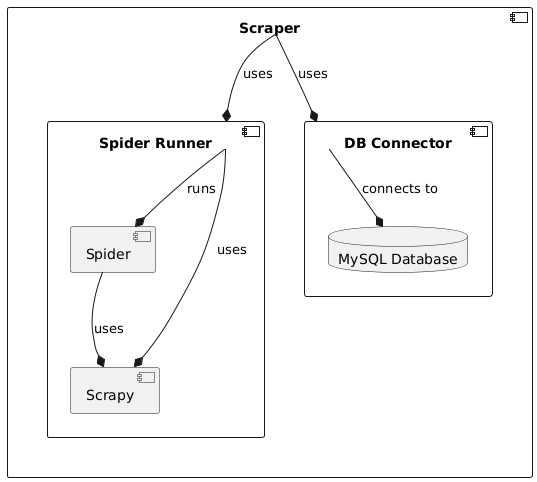
The Firmware Scraper consists of the following components:
Scraper
The Scraper itself orchestrates the scraping process. It does that by utilizing the SpiderRunner to execute the Spiders to scrape metadata from vendor websites while it also interacts with the DBConnector to store and manage the scraped data in the database.
Spider Runner
The SpiderRunner executes the individual spiders that do the actual scraping. It uses the Scrapy framework to start all individual spiders and retrieve the scraped metadata.
Spiders
The spiders are the components that are responsible for the actual scraping of metadata. They are executed by the SpiderRunner and send the scraped items to the SpiderRunner for collection. Since every vendor website has an own layout and works differently, each spider is designed for a specific vendor.
Additional spiders can also be designed to scrape images from vendors that are not yet supported. For information on writing own spiders, see the chapter Write Own Spiders.
To configure which spiders will be executed, adjust the settings in firmware_scraper/config.json.
DB Connector
The DB Connector provides the interface to interact with the database that holds all the information about the scraped firmware images. It offers convenient methods that can be used to execute SQL transactions on the database. It is used by the Scraper to store and manage the scraped data in the database.
It offers methods to create and drop tables, insert products, compare products between tables or set file paths.
MySQL Database
The database holds all information about the firmware images. It is used by the Scraper and the DBConnector to store and manage the scraped data.
The metadata extracted by the spiders and saved to the database contains the following information:
- manufacturer / vendor name: The name of the vendor that produced the firmware (e.g. AVM, Belkin, TP-Link,...).
- product_name: The name of the product, the firmware was produced for.
- product_type: The type of product the firmware is made for.
- version: The version number of the firmware.
- release_date: The date when this version of the firmware was released.
- checksum_scraped: A checksum to validate the downloaded image.
Information is only added to the database if it is available. If the scraper could not retrieve the desired information from the vendor website, for example the checksum, it will remain NULL in the database.
After the images are downloaded, the following information will be added to the entries:
- original_dl_file_path: The path to the file that was downloaded using the provided download link.
- file_path: Since some downloads contain an archive file, this path will contain the extracted actual firmware images.
- checksum_local: The SHA256 checksum of the downloaded file for integrity verification.
- partial_hash: A SHA256 hash of the first 250KB of the file, used for early duplicate detection during downloads.
Scraping Architecture
The Firmware Scraper uses a simultaneous scrape-and-download architecture implemented in run_manager.py:
- Metadata scraping and file downloading happen in parallel
- Multiple downloader workers process downloads concurrently (configurable via
NUM_DOWNLOADER_WORKERSenvironment variable, default: 4) - Early duplicate detection using partial file hashes (first 250KB) to avoid downloading duplicate files
- Automatic extraction of firmware from archive formats (ZIP, TAR, RAR)
Scraping Process
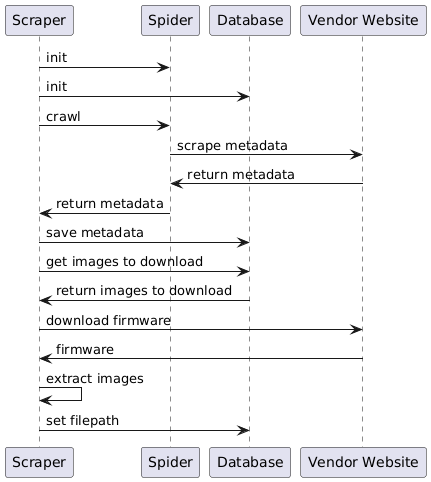
When the scraper starts, it follows this process:
- The Manager initializes the Database and starts both the SpiderRunner and Downloader workers in parallel
- The spiders scrape the metadata about firmware images from the vendor websites
- It is checked if the scraped metadata already exists in the database and if not, it will be added
- As metadata becomes available, download tasks are immediately queued for the downloader workers
- Multiple downloader workers process downloads in parallel:
- Check for duplicates using partial hash (first 250KB of file)
- Download the firmware file if not a duplicate
- Calculate full SHA256 checksum
- Extract firmware from archives automatically
- Update database with file paths and checksums
- After the desired firmware images are saved, the filepath is added to the corresponding entry in the database so the frontend and the job services can find the actual image files
The number of parallel downloader workers can be adjusted via the NUM_DOWNLOADER_WORKERS environment variable in the Docker Compose file. The default is 4 workers, which provides a good balance between performance and resource usage.
Download Configuration
The download and extraction behavior can be configured in the config.json file under the download section:
Firmware File Extensions
The firmware_file_extensions array defines which file extensions are considered firmware files. These files will be extracted from archives when found:
"firmware_file_extensions": [
    "bin", "img", "image", "pat",
    "zip", "tar", "gz", "tgz", "bz2", "xz", "rar", "7z"
]
Skip Extraction Extensions
The skip_extraction_extensions array defines file types that should never be extracted. These are typically documentation files:
"skip_extraction_extensions": [
    "doc", "docx", "pdf", "txt", "html", "htm", "xml"
]
Extraction Process
When a downloaded file is an archive (ZIP, TAR, RAR), the downloader will:
- Extract the contents to a subdirectory
- Recursively extract nested archives
- Search for firmware files based on
firmware_file_extensions - Update the database with the path to the extracted firmware file
- Keep the original archive path in
original_dl_file_path
If no firmware files are found after extraction, the first extracted file will be used as the firmware path.